 HackingPassion.com
Microsoft Edge Stores Every Saved Password in Cleartext Memory at Startup
Ethical Hacking Complete Course Zero to Expert
Hack like black hat hackers. Penetration testing, Kali Linux, WiFi and web hacking, and the hacker mindset behind it.
→ Take the full courseMicrosoft Edge loads every saved password into memory the moment the browser opens. They sit there in plain readable text for the entire session, even for sites that are never visited during that session. Microsoft’s official response: this is by design.
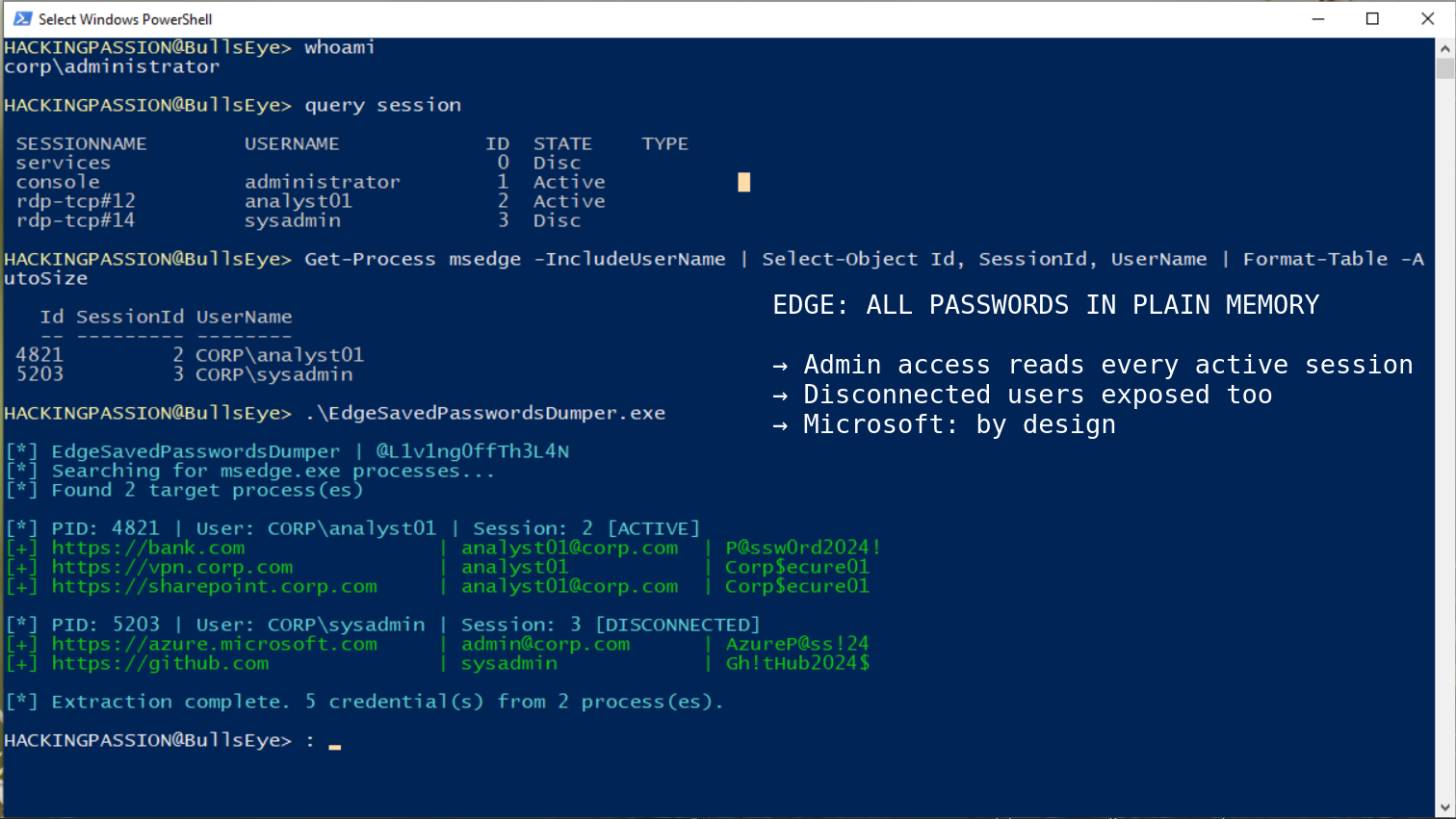
A security researcher who goes by @L1v1ng0ffTh3L4N decided to test every major Chromium-based browser to see how each one actually handles stored credentials while running. He went through them one by one. Edge was the only browser he found behaving this way. He took his findings to the BigBiteOfTech conference on April 29, presented them there with Palo Alto Networks Norway, and then posted a proof-of-concept video on May 4 that pulled in 5,900 responses within hours. He also put a small tool on GitHub called EdgeSavedPasswordsDumper so anyone could check this on their own machine.
To understand what that actually means, it helps to know a bit about how programs store things while they run. When Windows opens a program, it gives that program a chunk of RAM to work with. That chunk is called process memory. Everything the program is actively using sits in there. Other programs on the same machine, if they have the right permissions, can reach in and read what is sitting in someone else’s chunk.
Browser passwords have to be decrypted at some point so the browser can fill them in when visiting a site. The question is when. Does the browser decrypt each password at the exact moment it is needed, or does it unlock everything at startup and leave it all sitting in that RAM chunk until the browser is closed?
Edge does the second one. Every credential stored in Edge’s password manager, for every site ever saved, gets decrypted at launch and sits in process memory from that point on. Whether those sites are visited that day or not makes no difference.
Chrome handles this completely differently. It decrypts passwords strictly on demand, one at a time, only when autofill actually fires or when someone explicitly opens the password manager to look at something. Chrome also protects its decryption keys using something called App-Bound Encryption. The short version: those keys are tied to the Chrome process itself, so even if another program on the same machine tries to grab them, it gets nothing useful back. Google introduced App-Bound Encryption in Chrome 127 in 2024, not as a routine update but as a direct response to the growing infostealer market. The attacks were scaling fast, the techniques were well-documented, and Chrome changed its architecture because of it. Edge saw the same threat landscape and did not make that change.
Edge has a similar setting available on Windows, and this is where most coverage of this story stops without finishing the explanation. App-Bound Encryption protects keys that are used for data sitting on disk. It does nothing for passwords that are already decrypted and sitting in memory as plain text. Angus Holliday, a senior security operations specialist who joined the LinkedIn discussion after the disclosure, put it directly: App-Bound Encryption protects at rest and key usage, and does not protect memory. So even with every available Edge security setting fully enabled on a Windows machine, the attack still works. On macOS, Android, and iOS, that setting does not even exist.
What makes the history here worth knowing is that Microsoft used to warn against this themselves. For years, Microsoft’s own documentation recommended that enterprise users disable the built-in Edge password manager and use a dedicated third-party tool instead. Then they quietly reversed that recommendation. Starting with Edge version 114, the guidance shifted: the setting moved to “not configured” and the documentation started calling the built-in manager the recommended option, based on new features that Microsoft said had improved the security tradeoffs. The cleartext memory behavior was present before that reversal. It was present after. The architectural decision that this disclosure is about did not change when the recommendation did. Microsoft walked back their own warning, and the underlying risk stayed exactly where it was.
There is one more thing that makes this picture strange. When someone tries to view their saved passwords through Edge’s built-in password manager, the browser asks for re-authentication first. A PIN or a Windows password. That prompt looks like protection. It is not. The browser process already has every saved password sitting in memory in plain text before that screen ever appears. The gate controls what gets displayed on screen. It does not touch what is already sitting in process memory behind it. Edge also has a separate setting called authenticate before autofill, which asks for that same confirmation before filling in a password on a website. That setting is real and it does block autofill until confirmed. But it does not change what is sitting in memory. The passwords are already there from the moment Edge opened. Both prompts protect the user interface. Neither one protects the memory.
On a personal machine, an attacker needs some level of local access to begin with. The situation changes completely on shared server environments. When multiple people use the same Windows server at the same time, that setup is called a terminal server or a Remote Desktop Services environment, often shortened to RDS. An administrator on one of these machines has access to the running processes of every user logged in at that moment. If Edge is running for any of those users and passwords are saved, those credentials are sitting in memory right now. The proof-of-concept video @L1v1ng0ffTh3L4N published shows exactly this. A compromised administrator account reads the stored credentials of two other users on the same server. One of them was not even at their desk. Their session was disconnected, Edge was still running in the background, and the passwords came out anyway. Research published by Whiteintel in March 2026 mapped the full infostealer lifecycle and found that stolen corporate credentials reach dark web marketplaces within 48 hours of infection. In many cases significantly less. That means the window between an attacker reading Edge process memory on a terminal server and those credentials appearing for sale is shorter than most security teams take to notice anything is wrong.
Security teams use a shared reference called MITRE ATT&CK to document how attacks actually work in practice. What happened in that video maps to T1555.003, the entry for pulling credentials directly out of running web browsers. It is not a theoretical entry in that database. A category of malware called infostealers, tools built specifically to harvest saved passwords and session cookies off infected machines, are doing exactly this at scale right now. In the first half of 2025 alone, 1.8 billion credentials were stolen this way globally.
The infostealer market runs on subscriptions. Anyone can rent tools like Lumma, RedLine, Raccoon, or Vidar through underground forums and Telegram channels for around $200 a month. No technical background required. The stolen results, packages of usernames and passwords grouped per victim, sell on dark web markets for one to ten dollars each. Fifty-four percent of ransomware victims had an infostealer infection on their machine before the ransomware hit. A newer tool called VoidStealer, first spotted in December 2025, found a way to bypass even Chrome’s App-Bound Encryption without needing administrator rights, using a debugger technique that researchers had not seen used in the wild before. Edge, which keeps every saved password decrypted in memory from the moment it opens, is an easier target than Chrome in this scenario. Not a harder one.
This matters at scale because Edge is not just the browser that ships preinstalled on Windows. It is the default on every Windows machine, deeply integrated with Microsoft 365, Teams, Entra ID, and Windows Defender, which is exactly why it has become the primary browser across so many enterprise environments. That integration is also what makes this design choice a real operational problem. A single compromised administrator account on a terminal server running Edge means access to the credentials of every user with an active or recently disconnected session on that machine, all at once.
Encrypting passwords on disk does not fully solve this either, and here is why. When Edge saves a password, it locks it with a standard encryption algorithm before writing it to disk. But the key to unlock it has to live somewhere. Windows stores that key using something called DPAPI, short for Data Protection API. DPAPI hands that key out to any program running as the same Windows user on that machine. Any program. That includes malware. Infostealers that go after stored browser passwords already use this path to pull them straight off disk. Edge takes it a step further: instead of just leaving the key available for whoever asks, Edge uses it at startup to decrypt every single stored credential and then parks all of those passwords in process memory for the rest of the session.
| |
To look for signs of this activity on a system:
- → Processes holding SeDebugPrivilege or an open handle to msedge.exe process memory
- → Unexpected ReadProcessMemory API calls aimed at Edge processes
- → EdgeSavedPasswordsDumper.exe or similar tools showing up on disk or in execution logs
- → Audit log entries showing unusual administrator access to active user sessions on terminal servers
- → Endpoint detection alerts tagged to T1555.003 in threat hunting tooling
The most direct fix is to stop saving passwords in Edge for anything that matters. A dedicated password manager that requires a master password to unlock keeps credentials out of browser memory entirely. Tools like Bitwarden and 1Password work this way. Nothing reaches plain text unless the vault is actively opened, and that opening happens outside the browser process completely.
For organizations running Edge across managed machines, the built-in password manager can be turned off through Group Policy:
| |
On terminal servers and RDS environments, that setting is not a recommendation. It is the minimum step. As long as Edge runs with saved passwords on a shared server, administrator access to that server is access to every credential sitting in every active and disconnected Edge session on it at that moment.
Microsoft has not indicated any intention to change the current design. Their position is that browsers are not built to defend against scenarios where the entire device is already compromised. That is a fair thing to say in general. What makes it harder to accept here is that Microsoft’s own password manager documentation describes the exact problem: the key used to encrypt browser passwords is available to any process running as that user, and passwords loaded into browser memory can be read from that memory space. They wrote that themselves. Then they put it outside the threat model. Chrome looked at the same situation and changed its architecture. Edge did not. Until that changes, the built-in Edge password manager should not be the primary place to store credentials that carry real risk.
How attackers escalate privileges once inside a Windows machine, dump credentials from running processes, and then move through an entire network is exactly what the ethical hacking course covers from the ground up:
Hacking is not a hobby but a way of life. 🎯
Sources: EdgeSavedPasswordsDumper: @L1v1ng0ffTh3L4N | Microsoft Edge password manager security: Microsoft Learn
Stay updated
Get the latest posts in your inbox every week. Ethical hacking, security news, tutorials, and everything that catches my attention. If that sounds useful, drop your email below.