 HackingPassion.com
Best Linux Commands Hacks and Other Cool Tricks for Beginners

Ethical Hacking Complete Course Zero to Expert
Hack like black hat hackers. Penetration testing, Kali Linux, WiFi and web hacking, and the hacker mindset behind it.
→ Take the full courseUpdated: June 1, 2026
In this article, I will try to cover the most useful Linux commands that every hacker, pentester, and expert in cybersecurity must know !!
This article walks through the commands that matter when you work in security. You get a full A to Z list with a short line on what each one does, so you can look things up whenever you forget one. Before that there is a quick look at package managers, the tools that install and remove software for you, and how to add a user account and give it the right permissions.
At the end you will find a few commands that are just for fun. They will not make you a better hacker, but they are nice to know and fun to show people.
You do not need to memorize any of this. Read it once, try the commands yourself, and keep this page open next to your terminal while you work.
Your home is the terminal. You work on several projects at once, You know every keystroke is valuable. With just some commands, you can automate tasks, install your favorite software, view a whole network, find vulnerabilities on just about anything connected to the internet, compile a script, create additional user accounts, properly configure anonymity software, and optimize your interactions with terminals. When you search for something, it should be blazing fast. If something is less than 100% efficient, you will spend hours figuring out the right way to save yourself seconds. Every detail matters, and every keystroke tells a story. Are you ready to push the limits of what’s possible?
Linux MAN PAGE (SHORT FOR MANUAL PAGE)
There is quite something to say about the man page. A man page is an extensive help page in Linux. There are people who have learned Linux through the man command. It is a way to find out everything about the program.
| |
To find out a lot about python
| |
Use this command to find the explanation of the man page:
| |
You will get this output “How to use the man page” (As the screenshot shows).
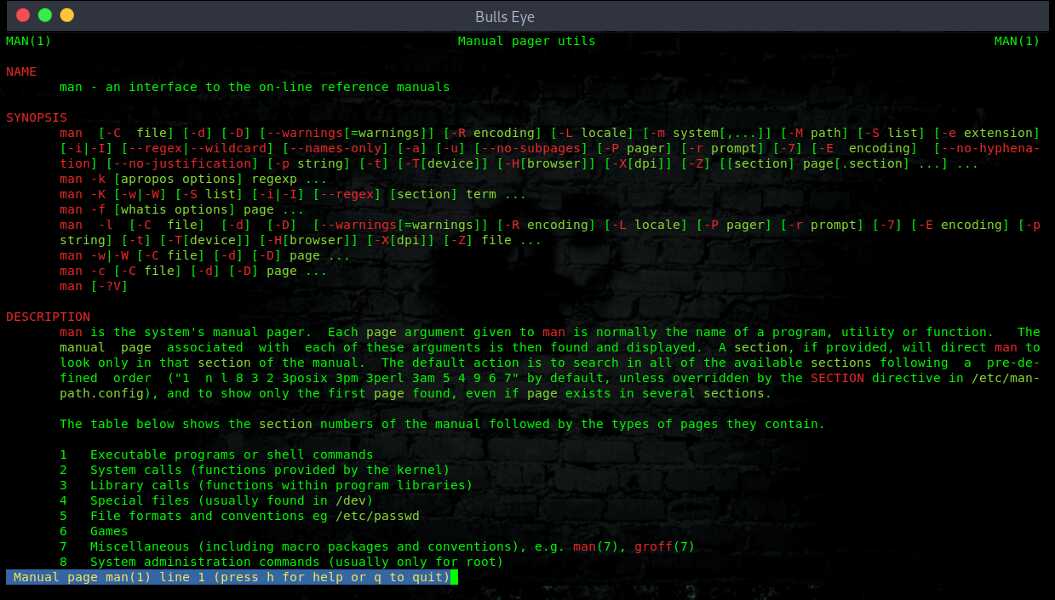
If there isn’t any man page available than you can invoke the program help page if any.
| |
| |
LINUX PACKAGES MANAGERS
In addition to apt which is the Debian package manager, there is other packages manager used by the different Linux systems. Below are some of the best known:
- Debian - Ubuntu Debian:
apt, apt-cache, apt-get, dpkg - Arch Linux:
pacman -S packageName - OpenSUSE:
zypper - sudo zypper update - CentOS - Fedora - Red Hat:
yum,dnf
In recent versions of Fedora, yum has been supplanted by dnf, a modernized fork that retains most of yum’s interface.
In this article, we will focus on Debian based Pentest Linux such as (Kali or Parrot OS).
APT (PREVIOUSLY APT-GET)
The apt tool automatically updates Debian, Ubuntu, and other related Linux distributions (Like Kali Linux) and installs Debian/Ubuntu packages and programs. The apt provides the necessary option to manage the packages. while apt-get won’t be deprecated, as a regular user, I suggest you use a directly apt command which does exactly the same but which is more recent.
To perform an update run this command on your system’s terminal:
| |
To perform an upgrade run this command on your system’s terminal:
| |
To perform a whole upgrade run this command on your system’s terminal:
| |
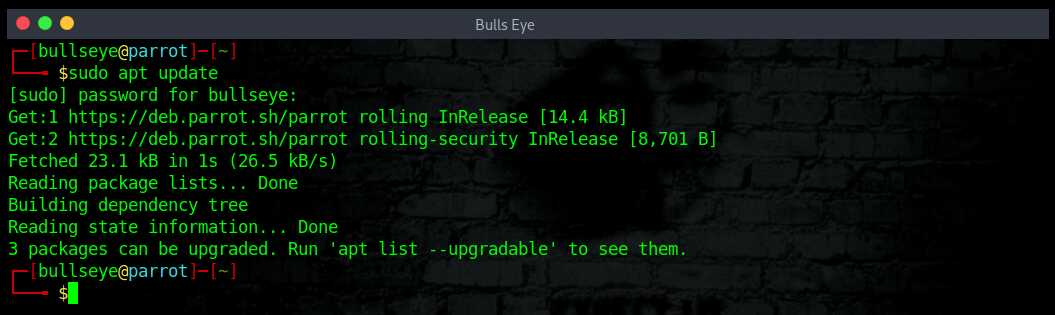
You also can comby this two commands in one line:
| |
- sudo apt [options] command
- sudo apt install […PACKAGES] (for installing a package)
- sudo apt search […PACKAGES] (for searching a package)
- sudo apt remove […PACKAGES] (for removing a package)
Since the 2020.1 release, Kali Linux no longer logs you in as root by default. The live and installer images now create a normal, non-root user, and on the live image the default login is kali with the password kali. The old root / toor credentials no longer work out of the box. You do your daily work as a regular user and use sudo only when you need elevated rights, which is a healthier habit and also how Parrot OS works. If you want to create your own sudo user account, here are two examples of how to do that.
CREATING A USER ACCOUNT IN LINUX
First of all register a normal user account using **adduser** command, it’ll ask you for password confirmation and other user details.
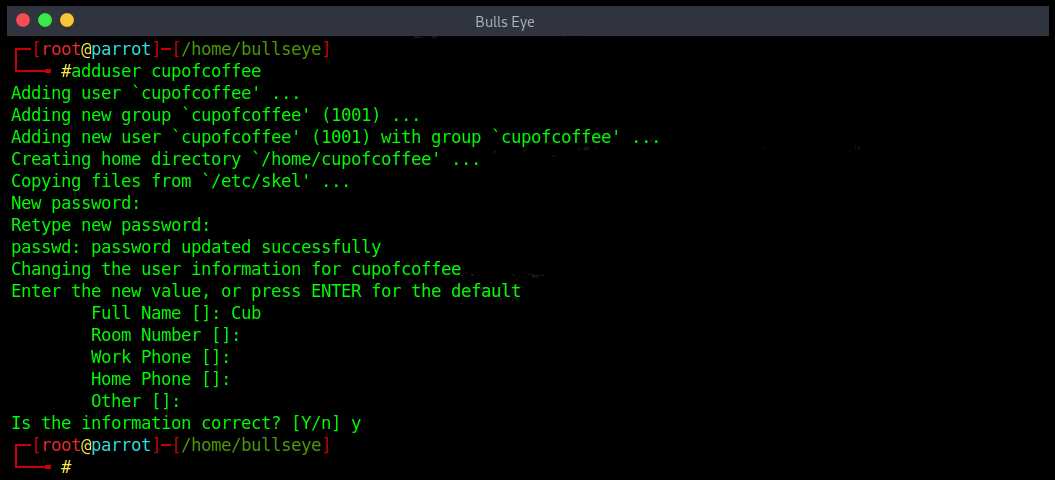
Another way to add a user is:
Creates a home directory for the user
| |
At this point we have added a new user. But we need to put this user in sudoers group so that this user can use sudo command to perform administrative tasks on the machine and let us do whatever we would like to do.
Set the password for the user:
This will prompt you to enter a password.
| |
If you want to add the user to a specific group, type the command:
| |
- -a means add
- -G sudo means to add the user to sudoers group
The last thing to do is to specify the shell the creation of the new user. To do so execute the following command:
| |
NOTE: You can delete the user using the following command:
| |
- Remove this user
| |
- Delete the user’s home directory and mail spool
| |
The “sudo” command lets you execute commands with superuser privileges as long as your user id is in the sudoers file, giving you all the necessary authorization.
HOW TO GET ROOT PRIVILEGES IN LINUX
In a “normal” Linux installation such as Ubuntu or Linux Mint, we do not have root access by default in the machine. So if needed, we can create root access as follows:
Can also be used to change the password
| |
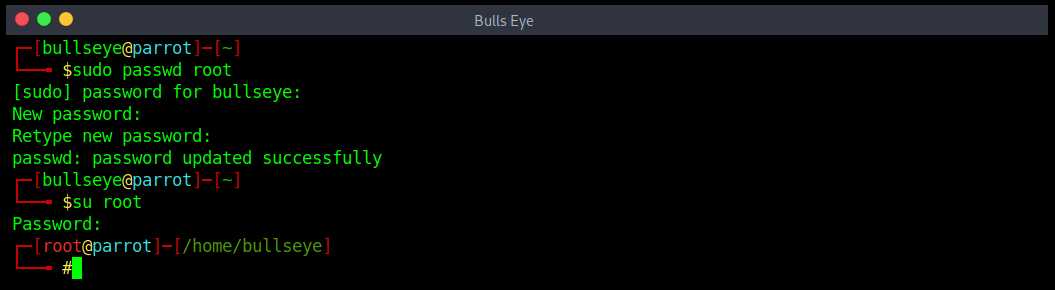
The command su root gives us the root access to Linux As can be seen in the screenshot above.
A-Z LINUX COMMANDS
A
- apropos: Search Help manual pages
- apt: Search for and install software packages (Debian)
- apt-get: Search for and install software packages (Debian)
- aptitude: Search for and install software packages (Debian)
- aspell: Spell Checker
B
- basename: Strip directory and suffix from filenames
- bash: GNU Bourne-Again Shell. A Shell command lanuage
- bc: Arbitrary precision calculator language
- bg: Send to background
- break: Exit from a loop
- builtin: Run a shell builtin
- bzip2: Compress or decompress named file(s)
C
- cal: Display a calendar
- case: Conditionally perform a command
- cat: Concatenate and print (display) the content of files
- cd: Change Directory
- cfdisk: Partition table manipulator for Linux
- chgrp: Change group ownership
- chmod: Change access permissions
- chown: Change file owner and group
- chroot: Run a command with a different root directory
- cksum: Print CRC checksum and byte counts
- clear: Clear terminal screen
- cmp: Compare two files
- comm: Compare two sorted files line by line
- command: Run a command – ignoring shell functions
- continue: Resume the next iteration of a loop
- cp: Copy one or more files to another location
- cron: Daemon to execute scheduled commands
- crontab: Schedule a command to run at a later time
- csplit: Split a file into context-determined pieces
- cut: Divide a file into several parts
D
- date: Display or change the date & time
- dc: Desk Calculator
- dd: Convert and copy a file, write disk headers, boot records
- ddrescue: Data recovery tool
- declare: Declare variables and give them attributes
- df: Display free disk space
- diff: Display the differences between two files
- diff3: Show differences among three files
- dig: DNS lookup
- dir: Briefly list directory contents
- dircolors: Colour setup for `ls’
- dirname: Convert a full path name to just a path
- dirs: Display list of remembered directories
- dmesg: Print kernel & driver messages
- du: Estimate file space usage
E
- echo: Display message on the screen
- egrep: Search file(s) for lines that match an extended-expression
- eject: Eject removable media
- enable: Enable and disable builtin shell commands
- env: Environment variables
- ethtool: Ethernet card settings
- eval: Evaluate several commands/arguments
- exec: Execute a command
- exit: Exit the shell
- expect: Automate arbitrary applications accessed over a terminal
- expand: Convert tabs to spaces
- export: Set an environment variable
- expr: Evaluate expressions
F
- false: Do nothing, unsuccessfully
- fc: Edit and re-execute previous commands
- fdisk: Partition table manipulator for Linux
- fg: Send job to foreground
- fgrep: Search file(s) for lines that match a fixed string
- file: Determine file type
- find: Search for files that meet a desired criteria
- fmt: Reformat paragraph text
- fold: Wrap text to fit a specified width
- for: Expand words, and execute commands
- format: Format disks or tapes
- free: Display memory usage
- fsck: File system consistency check and repair
- ftp: File Transfer Protocol
- function: Define function macros
- fuser: Identify/kill the process that is accessing a file
G
- gawk: Find and Replace text within file(s)
- getopts: Parse positional parameters
- grep: Search file(s) for lines that match a given pattern
- groupadd: Add a user security group
- groupdel: Delete a group
- groupmod: Modify a group
- groups: Print group names a user is in
- gzip: Compress or decompress named file(s)
H
- hash: Remember the full pathname of a name argument
- head: Output the first part of a file(s)
- help: Display help for a built-in command
- history: Command History
- hostname: Print or set system name
I
- iconv: Convert the character set of a file
- id: Print user and group id’s
- if: Conditionally perform a command
- ifconfig: Configure a network interface
- ifdown: Stop a network interface
- ifup: Start a network interface up
- import: Capture an X server screen and save the image to file
- install: Copy files and set attributes
J
- jobs: List active jobs
- join: Join lines on a common field
K
- kill: Stop a process from running
- killall: Kill processes by name
L
- less: Display output one screen at a time
- let: Perform arithmetic on shell variables
- ln: Create a symbolic link to a file
- local: Create variables
- locate: Find files
- logname: Print current login name
- logout: Exit a login shell
- look: Display lines beginning with a given string
- lpc: Line printer control program
- lpr: Off line print
- lprint: Print a file
- lprintd: Abort a print job
- lprintq: List the print queue
- lprm: Remove jobs from the print queue
- ls: List information about file(s)
- lsof: List open files
M
- make: Recompile a group of programs
- man: Help manual
- mkdir: Create new folder(s)
- mkfifo: Make FIFOs (named pipes)
- mkisofs: Create an hybrid ISO9660/JOLIET/HFS filesystem
- mknod: Make block or character special files
- more: Display output one screen at a time
- mount: Mount a file system
- mtools: Manipulate MS-DOS files
- mtr: Network diagnostics (traceroute/ping)
- mv: Move or rename files or directories
- mmv: Mass Move and rename (files)
N
- netstat: Networking information
- nice: Set the priority of a command or job
- nl: Number lines and write files
- nohup: Run a command immune to hangups
- notify-send: Send desktop notifications
- nslookup: Query Internet name servers interactively
O
- open: Open a file in its default application
- op: Operator access
P
- passwd: Modify a password
- paste: Merge lines of files
- pathchk: Check file name portability
- ping: Test a network connection
- pkill: Stop processes from running
- popd: Restore the previous value of the current directory
- pr: Prepare files for printing
- printcap: Printer capability database
- printenv: Print environment variables
- printf: Format and print data
- ps: Process status
- pushd: Save and then change the current directory
- pwd: Print Working Directory
Q
- quota: Display disk usage and limits
- quotacheck: Scan a file system for disk usage
- quotactl: Set disk quotas
R
- rcp: Copy files between two machines
- read: Read a line from standard input
- readarray: Read from stdin into an array variable
- readonly: Mark variables/functions as read-only
- reboot: Reboot the system
- rename: Rename files
- renice: Alter priority of running processes
- remsync: Synchronize remote files via email
- return: Exit a shell function
- rev: Reverse lines of a file
- rm: Remove files
- rmdir: Remove folder(s)
- rsync: Remote file copy (Synchronize file trees)
S
- screen: Multiplex terminal, run remote shells via ssh
- scp: Secure copy (remote file copy)
- sdiff: Merge two files interactively
- sed: Stream Editor
- select: Accept keyboard input
- seq: Print numeric sequences
- set: Manipulate shell variables and functions
- sftp: Secure File Transfer Program
- shift: Shift positional parameters
- shopt: Shell Options
- shutdown: Shutdown or restart Linux
- sleep: Delay for a specified time
- slocate: Find files
- sort: Sort text files
- source: Run commands from a file `.’
- split: Split a file into fixed-size pieces
- ssh: Secure Shell client (remote login program)
- strace: Trace system calls and signals
- sum: Print a checksum for a file
- suspend: Suspend execution of this shell
- symlink: Make a new name for a file
- sync: Synchronize data on disk with memory
T
- tail: Output the last part of file
- tar: Tape ARchiver
- tee: Redirect output to multiple files
- test: Evaluate a conditional expression
- time: Measure Program running time
- times: User and system times
- touch: Change file timestamps
- top: List processes running on the system
- traceroute: Trace Route to Host
- trap: Run a command when a signal is set(bourne)
- tr: Translate, squeeze, and/or delete characters
- true: Do nothing, successfully
- tsort: Topological sort
- tty: Print filename of the terminal on stdin
- type: Describe a command
U
- ulimit: Limit user resources
- umask: Users file creation mask
- umount: Unmount a device
- unalias: Remove an alias
- uname: Print system information
- unexpand: Convert spaces to tabs
- uniq: Uniquify files
- units: Convert units from one scale to another
- unset: Remove variable or function names
- unshar: Unpack shell archive scripts
- until: Execute commands (until error)
- uptime: Show uptime
- useradd: Create new user account
- userdel: Delete a user account
- usermod: Modify user account
- users: List users currently logged in
V
- v: Verbosely list directory contents (`ls -l -b’)
- vdir: Verbosely list directory contents (`ls -l -b’)
- vi: Text Editor
- vim: Text Editor
- vmstat: Report virtual memory statistics
W
- wait: Wait for a process to complete
- watch: Execute/display a program periodically
- wc: Print byte, word, and line counts
- whereis: Search the user’s $path, man pages and source files for a program
- which: Search the user’s $path for a program file
- while: Execute commands
- who: Print all usernames currently logged in
- whoami: Print the current user id and name (`id -un’)
- wget: Retrieve web pages or files via HTTP, HTTPS or FTP
- write: Send a message to another user
X
- xargs: Execute utility, passing constructed argument list(s)
- xdg-open: Open a file or URL in the user’s preferred application.
Y
- yes: Print a string until interrupted
- yt-dlp: Download video from YouTube and 1000+ sites (the maintained successor to youtube-dl)
Z
- zcmp: Minimal utilitie used to compare compressed files
- zdiff: Minimal utilitie used to compare compressed files
- zip: Is a simple easy-to-use utility used to package and compress (archive) files.
- zz: Offers quick access to files and directories in Linux
HERE ARE SOME HANDY AND FUN PROGRAMS
INSTALL GIT
Git is an open-source software version control application distributed under the terms of the GNU General Public License version 2. It can be used for collaboratively sharing and editing code but is commonly referenced here as a primary tool for copying (or “cloning”) code repositories found on GitHub.
Git is a must-have tool for pentesters looking to expand their toolset beyond what’s available in the default Kali Linux repositories. Git can be installed using the below apt command.
| |
apropos
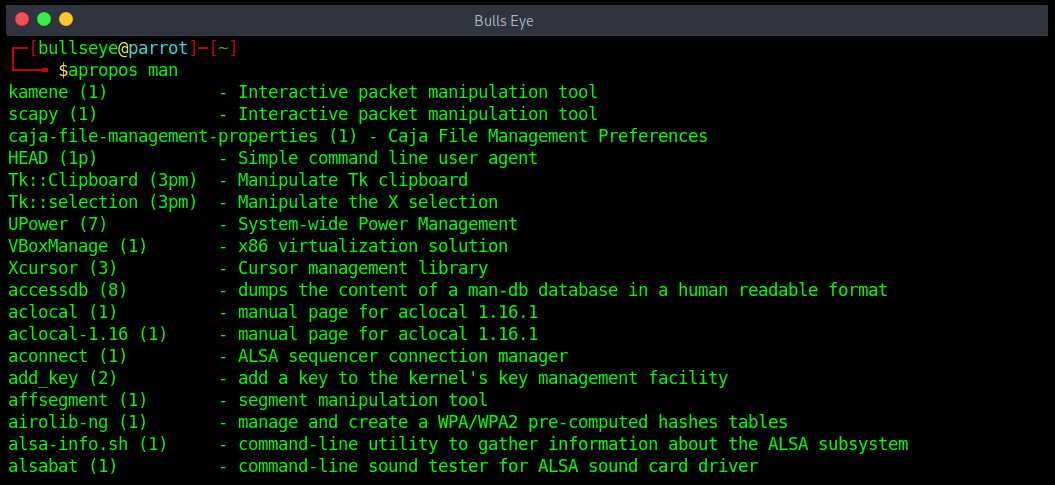
In Linux, if you need help regarding a command, all you need to do is to open its man page. But what if a situation arises wherein the requirement is to quickly search the names and descriptions of all available man pages? Well, Linux has got your covered, as there exists a command dubbed apropos that does exactly this for you.
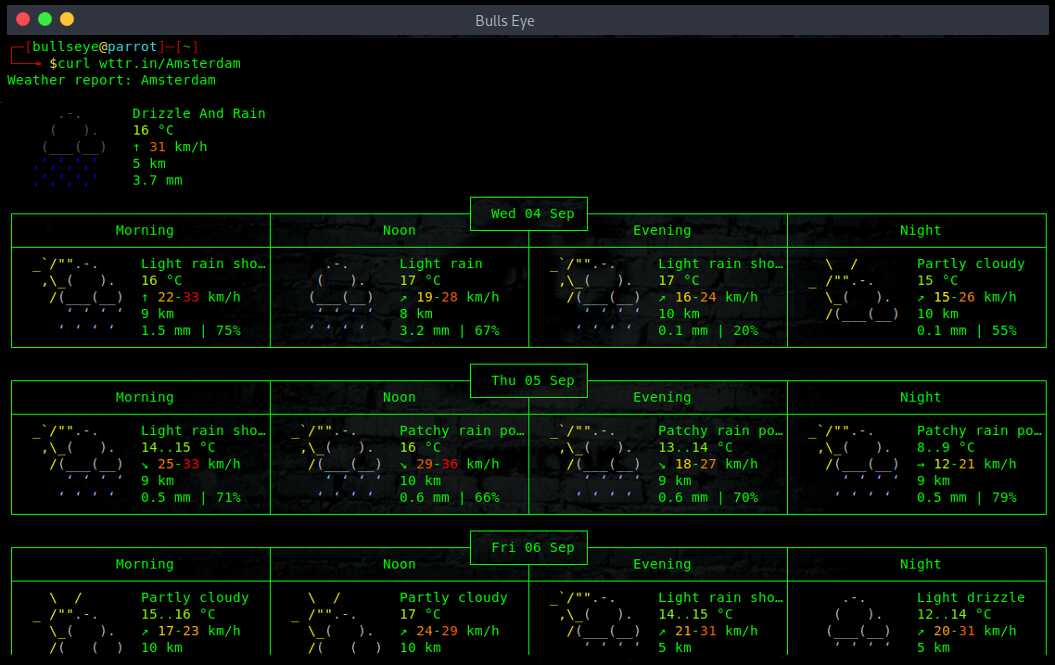
wttr.in
There’s only one right way to check the weather.
| |
fastfetch
Sometimes you just want to see what your machine is running. The operating system, the kernel version, how much memory you have, which desktop you are using. fastfetch prints all of that in a clean little block next to the logo of your Linux distro.
You might know neofetch, the tool fastfetch replaced. neofetch is gone now. The developer archived it in April 2024 and the last real version is from 2020, so it no longer gets updates. The author wrote fastfetch in C, which makes it fast, and the project still gets updates today.
| |
Then run it:
| |
Telnet
Telnet is an application protocol used on the Internet or local area network to provide a bidirectional interactive text-oriented communication facility using a virtual terminal connection. User data is interspersed in-band with Telnet control information in an 8-bit byte oriented data connection over the Transmission Control Protocol (TCP). The unique thing you will need here once again it’s your terminal and an Internet connection.
| |
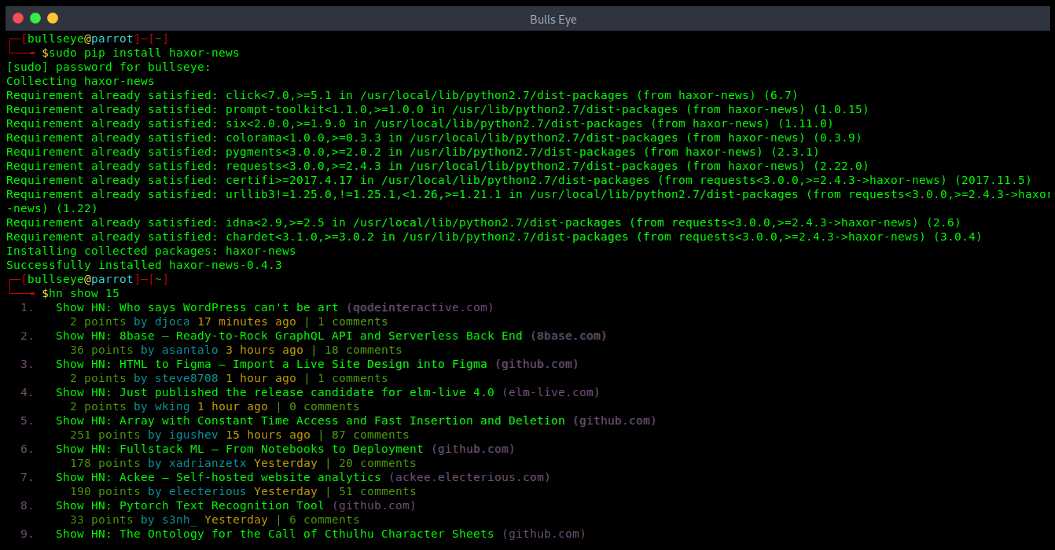
Haxor-news
How can you pretend to be a hacker if you don’t read Hacker News?
It is an old tool, the last release is from 2017 and it is no longer actively maintained, but it still works fine for reading Hacker News from your terminal.
On modern Kali and Parrot you install Python apps with pipx instead of pip, so run sudo apt install pipx first if you do not have it yet.
| |
The below command will show you how to use haxor-news
| |
Usage
| |
| |
cool-retro-term
Want your terminal to look like an old computer from the eighties? cool-retro-term is a terminal that copies the look of those old screens. Green glowing text, a slight flicker, the curved glass and the scan lines. It works like any normal terminal, you just get the retro look while you type.
| |
Start it from your menu or by typing cool-retro-term, then open the settings and pick the screen style you like.
man-eye
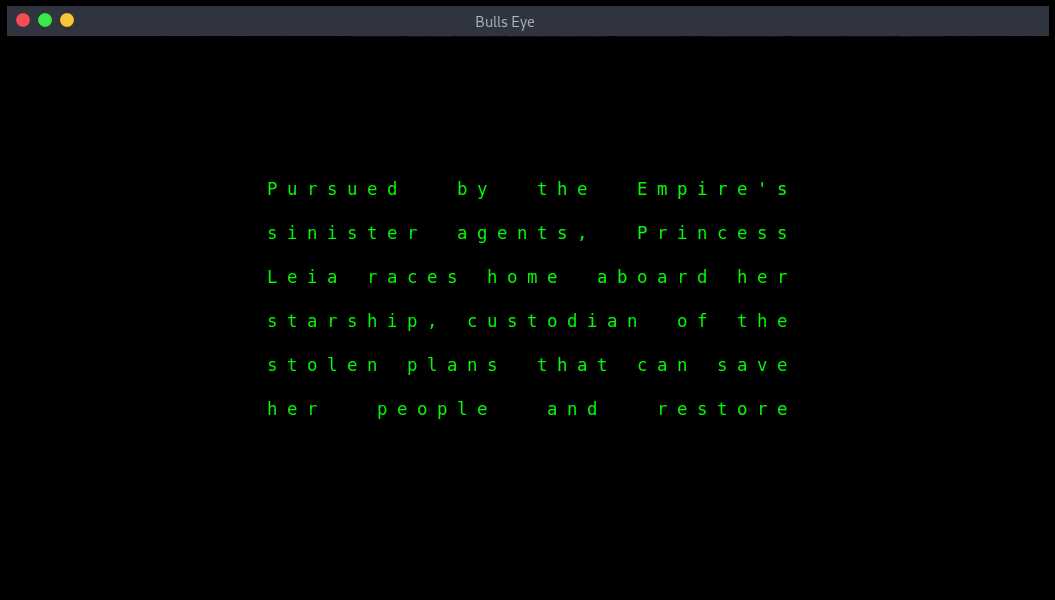
This one is mine. I built man-eye because someone once told me they learned Linux just by reading the man pages, the built-in manuals that come with almost every command. That stuck with me, so I made a small script that turns reading man pages into something you actually want to do, and it runs in cool-retro-term for that old-school feel.
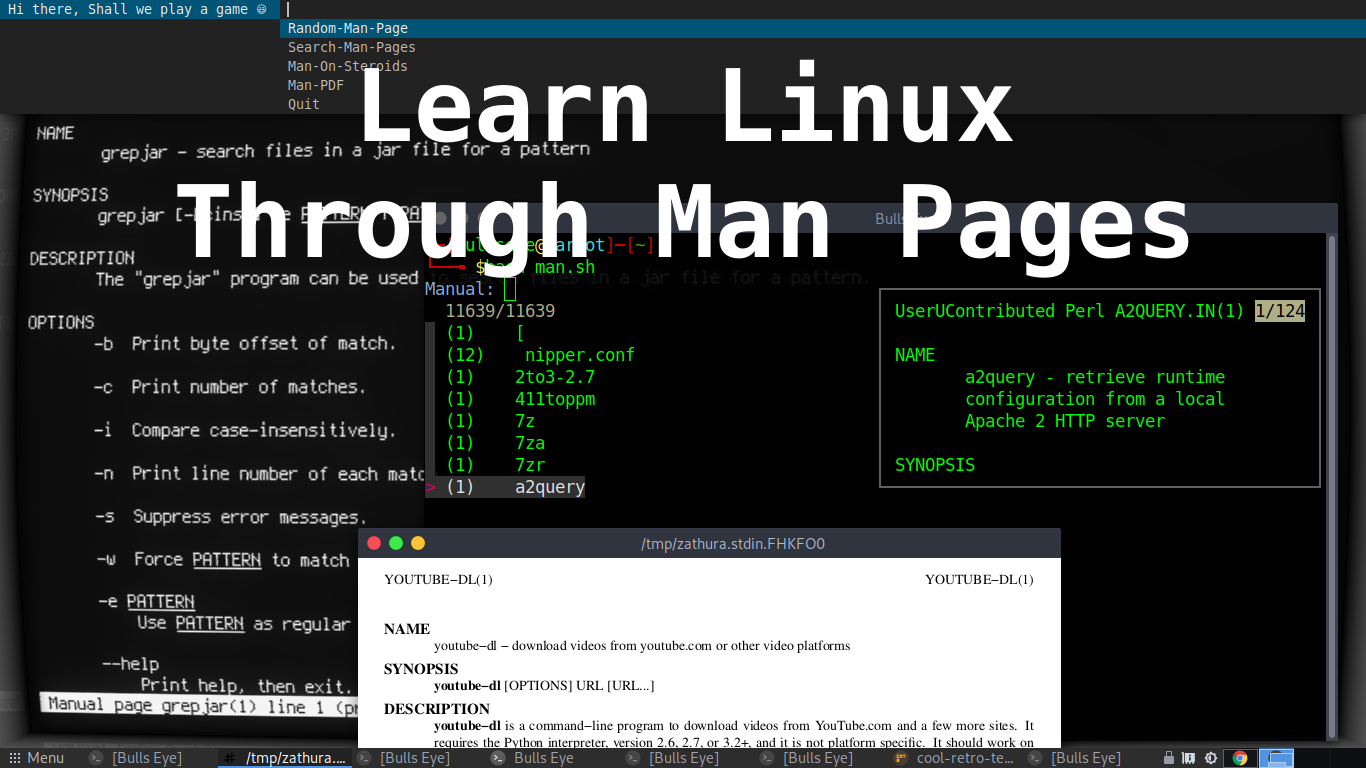
man-eye gives you five options. Random-Man-Page picks a manual at random, which is a nice way to learn one new command every day. Search-Man-Pages lets you look one up through a quick search menu. Man-On-Steroids shows you a preview right in your terminal. Man-PDF opens the manual as a clean PDF with Zathura. And Quit closes everything.
Before you run it, install the tools it needs:
| |
Then grab the script and start it:
| |
You can find man-eye on my GitHub here: https://github.com/BullsEye0/man-eye
My goal is to educate people and increase awareness by exposing methods used by real black-hat hackers and show how to secure systems from these hackers. Start with hacking:
Hacking is not a hobby but a way of life. 🎯
Stay updated
Get the latest posts in your inbox every week. Ethical hacking, security news, tutorials, and everything that catches my attention. If that sounds useful, drop your email below.